
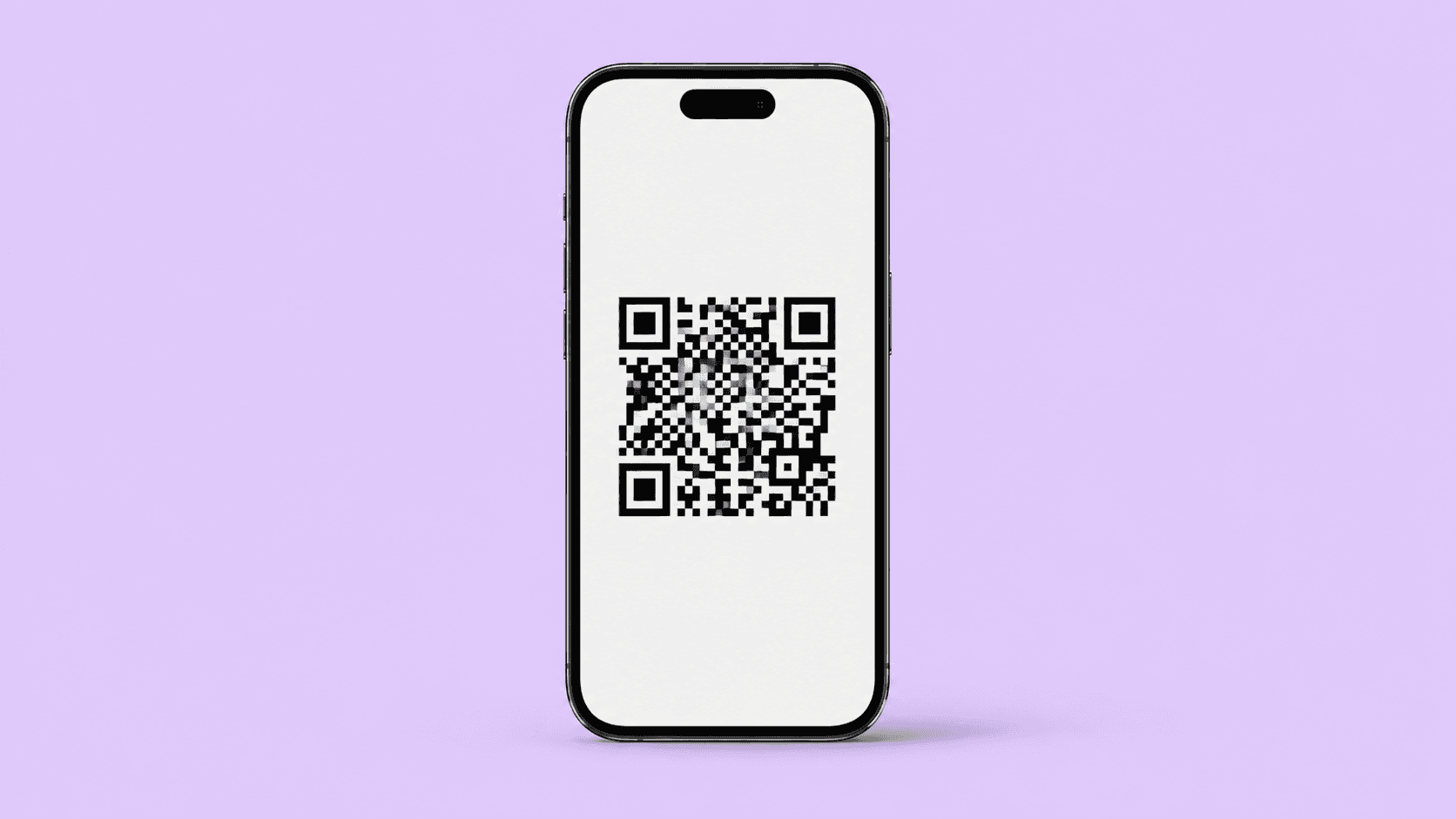
QR Code Not Scanning for eSIM? Try These Fixes
Trying to install a travel eSIM but the QR code will not scan? Here are the most common reasons it happens and the quick fixes that usually solve it.
You did the sensible thing.
You got your travel eSIM ready before the trip.
You opened the camera.
You pointed it at the QR code.
And then your phone basically said: no.
If your eSIM QR code is not scanning, do not panic. This is one of the most common setup issues, and most of the time the fix is simple.
Usually, the problem is not the eSIM itself. It is something small like screen brightness, camera focus, the wrong setup screen, or a phone setting getting in the way.
Here is how to fix it.
Quick answer
If your eSIM QR code is not scanning, check these first:
make sure your phone supports eSIM
make sure your phone is unlocked
clean the camera lens
increase the screen brightness on the device showing the QR code
make sure you are scanning from the Add eSIM setup screen, not just the regular camera
try manual eSIM entry if scanning still fails
That solves a surprising amount of pain.
Why your eSIM QR code is not scanning
There are a few usual suspects:
the QR code is blurry or too small
the screen showing the QR code is too dim
your camera is struggling to focus
you are trying to scan from the same phone that needs the eSIM
your phone is not eSIM compatible
your phone is carrier locked
the QR code has already been used
the installation flow needs manual entry instead
The trick is knowing which one is the real issue.
Fix 1: Make sure your phone actually supports eSIM
This sounds obvious, but it catches a lot of people.
Not every phone supports eSIM, and not every version of the same phone does either.
Before you lose time troubleshooting the QR code itself, confirm:
your phone model supports eSIM
your region/device version supports eSIM
your operating system is updated enough to handle it properly
If the phone is not eSIM compatible, the QR code can be perfectly fine and still go nowhere.
Fix 2: Make sure your phone is unlocked
A carrier-locked phone may block eSIM setup even if the QR code scans correctly.
So if you are stuck early in the process, check whether your phone is unlocked first.
On iPhone, go to:
Settings → General → About → Carrier Lock
If it says No SIM restrictions, that is a good sign.
If your phone is locked, the problem may not be the QR code at all.
Fix 3: Use the correct eSIM setup screen
A lot of people try scanning with the normal camera app first.
Sometimes that works. Sometimes it does not.
The more reliable way is to scan from the proper eSIM setup area.
On iPhone:
Settings → Cellular / Mobile Data → Add eSIM
On Android:
Usually:
Settings → Network & Internet / Connections → SIM Manager → Add eSIM
The exact wording depends on the phone, but the key is this:
Do not just wave the camera at it and hope for the best.
Use the eSIM setup flow.
Fix 4: Clean your camera lens
Yes, really.
If your lens has fingerprints, dust, or that mysterious soft blur all phone cameras seem to collect, scanning gets harder.
Wipe the lens and try again.
Tiny fix. Big ego-saving potential.
Fix 5: Turn up the brightness on the screen showing the QR code
If the QR code is being shown on another device, make that screen brighter.
Low brightness can make the code harder to detect, especially if:
the screen has glare
dark mode is affecting contrast
the code is displayed too small
Best practice:
raise brightness
zoom in slightly if needed
hold the screen steady
avoid reflections
Fix 6: Hold the phone at the right distance
Too close, and it will not focus.
Too far, and it will not read properly.
Try this:
hold the camera a little farther back than you think
move slowly closer
give it a second to focus
keep your hand steady
Most scanning failures are not dramatic. They are just awkward angles and impatience.
Fix 7: Do not scan the QR code from the same phone
If the QR code is displayed on the same phone that needs the eSIM, it obviously cannot scan itself.
In that case, you need to:
open the QR code on another phone, tablet, or laptop
print it if necessary
or use manual installation details instead
This happens more often than it should.
Fix 8: Check if the QR code has already been used
Some eSIM QR codes are single-use.
If the eSIM has already been installed once, or partially activated in an earlier attempt, scanning it again may fail.
That does not always mean the plan is lost. It may mean:
the eSIM is already installed in settings
the QR code needs to be reissued
you need manual activation details instead
Before trying again 12 times, check whether the eSIM already appears under your SIM settings.
Fix 9: Turn off Low Power Mode or Data Saver during setup
This is one of those annoying little issues that can interfere with setup or background activation.
If you are troubleshooting:
turn off Low Power Mode
turn off Low Data Mode / Data Saver
keep Wi-Fi stable if installation requires it
try the process again
These settings are useful for travel. Just not always during setup.
Fix 10: Restart the phone and try again
Not glamorous. Still effective.
A restart can clear:
setup glitches
stuck network behavior
failed detection from earlier attempts
Classic advice because it still works.
Fix 11: Use manual eSIM entry instead
If the QR code still refuses to cooperate, manual setup is often the fallback.
That usually means entering details like:
SM-DP+ address
activation code
confirmation code, if needed
Many eSIM providers offer this as a backup method.
So if the QR code is being dramatic, manual entry is usually the calmer friend in the group.
Fix 12: Update your phone software
Sometimes the issue is not the QR code. It is the device software.
If your OS is outdated, eSIM setup can behave oddly or fail to detect properly.
Check for updates before retrying.
Not exciting, but useful.
What to check after the QR code finally scans
Once it scans, make sure you do not stop too early.
Check that:
the eSIM appears in your SIM settings
it is turned on
it is selected for mobile data
Data Roaming is enabled if required
airplane mode has been toggled once after setup if needed
Scanning the QR code is step one.
Actually getting data is step two.
Both matter.
FAQ
Why is my eSIM QR code not scanning?
The most common reasons are:
phone does not support eSIM
phone is carrier locked
camera lens is dirty
QR code is too dim or blurry
you are using the wrong setup screen
the QR code has already been used
Can I scan an eSIM QR code with the regular camera?
Sometimes, but it is usually better to scan it from the phone’s dedicated eSIM setup screen.
Why is my iPhone not reading the eSIM QR code?
Common causes include poor focus, low screen brightness on the QR code, outdated software, carrier lock, or using the wrong setup path.
What if my eSIM QR code already scanned once?
Check whether the eSIM is already installed in your SIM settings. Some QR codes are single-use, so scanning again may fail even though the eSIM profile is already there.
Can Low Power Mode affect eSIM setup?
It can sometimes interfere with setup or activation behavior. Turn it off while troubleshooting.
Can I install eSIM without a QR code?
Yes. Many providers allow manual installation using activation details like an SM-DP+ address and activation code.
Why did the QR code scan but my eSIM still does not work?
That usually means the profile installed, but the data settings are not right yet. Check:
mobile data line selection
Data Roaming
whether the eSIM is turned on
network connection after setup
Do I need Wi-Fi to scan an eSIM QR code?
You may need Wi-Fi or a stable connection for the installation process, even if the QR code itself is readable.
Final thought
If your eSIM QR code is not scanning, it usually is not a disaster. It is usually one small thing getting in the way.
Check compatibility.
Use the proper setup screen.
Clean the lens.
Boost brightness.
Try manual entry if needed.
And remember: if travel tech is being annoying before your trip, at least it is getting it out of its system early.
About Me

your travel companion for destination tips and eSIM guides—helping you roam smarter and stay seamlessly connected worldwide
Trending Post




Stay up-to-date
Related Post
Roaming bills are broken, and summer makes it worse. Here's why 301K people searched "eSIM vs roaming" last month, and how to travel connected for less this summer.
Travel eSIM vs roaming: which is cheaper, easier and better for travel? Compare roaming fees, setup, speed and flexibility before your next trip.
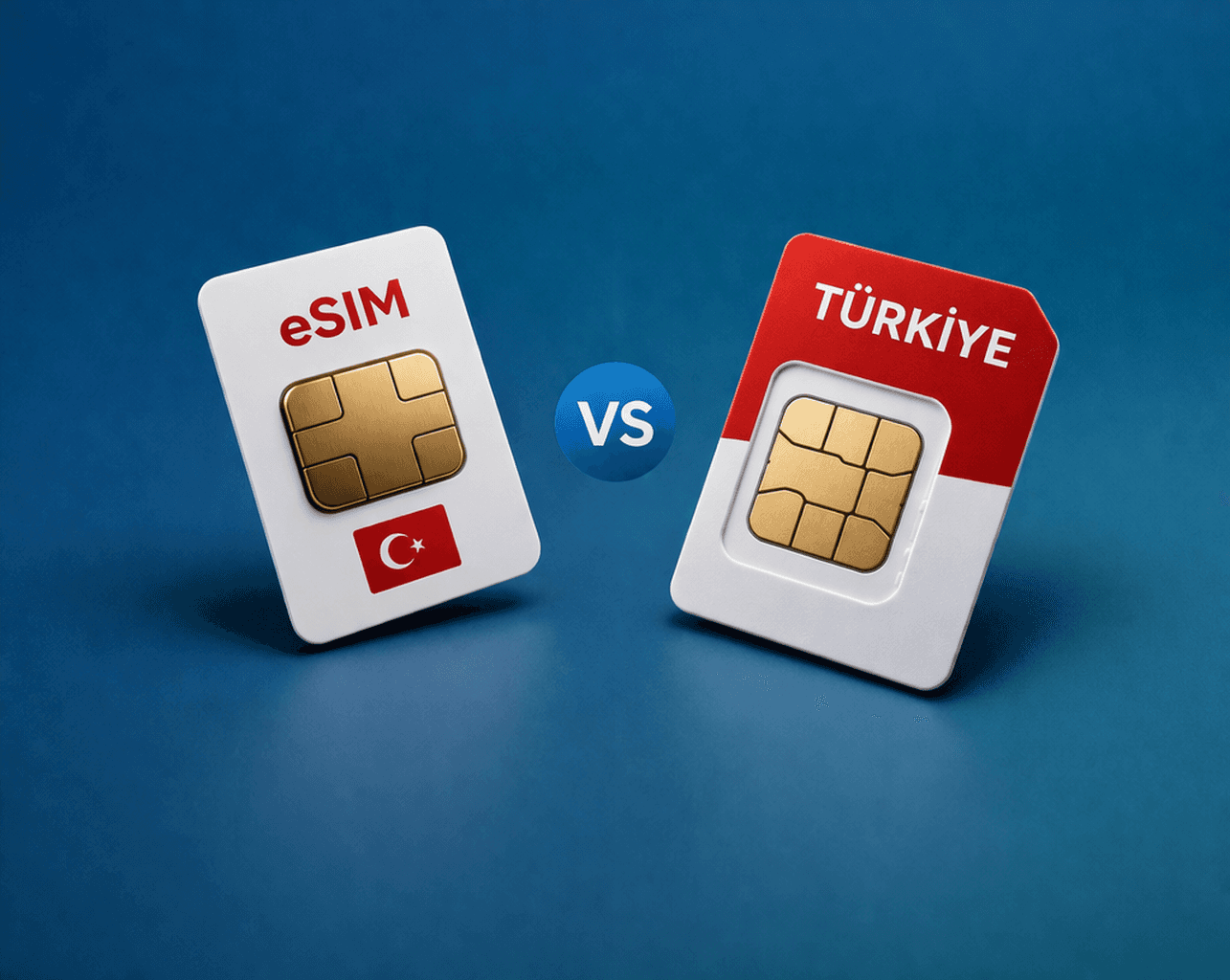
Traveling to Turkey and not sure whether to get an eSIM or a local SIM card? Here’s the simple comparison on setup, price, convenience, and what works best for most travelers.

Is your phone carrier locked or unlocked? Here’s what it means, how to check, and why a locked phone can stop your eSIM from working while traveling.